

Guide
How to connect TakeCare to Grok Bot
At TakeCare we use Grok Bot every day, so we connected TakeCare to it. Now we can ask "what's ready to invoice this week?" in the same chat where we do everything else.
This guide shows you how. It covers what Grok Bot can do once connected, the safety steps that stop anything saving before you've checked it, and which TakeCare plan you need.
The connector uses MCP (Model Context Protocol). Using Claude instead? See How to connect TakeCare to Claude.
What you need before you start
- A TakeCare login. Any provider login can read your data.
- The right plan for saves. Saves need Professional, Team or an active free trial. On Free you can connect and read, but saves are refused.
- The right role. Owners and coordinators can save. Workers and Billing only get less (see "Who can do what").
- The "Allow assistant saves" switch. Saves stay off until you turn it on (Step 4).
- A Grok Bot account.
You never paste your TakeCare password or a key into Grok Bot. You sign in on TakeCare's own page.
Step 1: Ask Grok Bot to add TakeCare
Use the address that matches your business:
| You are | Connector address |
|---|---|
| An NDIS or aged care provider, or a sole-trader support worker | https://itakecare.com.au/mcp/provider |
| A support coordinator | https://itakecare.com.au/mcp/coordinator |
- Open a chat with Grok Bot and send something like this:
"Add a custom MCP server called TakeCare at https://itakecare.com.au/mcp/provider. Don't ask me for a password or key; start its sign-in."
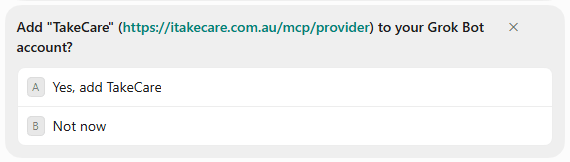
- Grok Bot asks you to confirm: Add "TakeCare" (address) to your Grok Bot account? Check the address is exactly right, then choose Yes, add TakeCare.
Step 2: Sign in and approve on TakeCare
- A connect card for TakeCare appears in the chat. Choose Authorize.

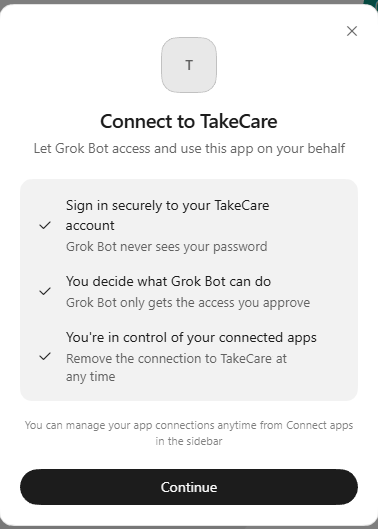
- Grok Bot shows Connect to TakeCare. It explains that you sign in securely, Grok Bot never sees your password, and you can remove the connection any time. Choose Continue.
- TakeCare's normal sign-in page opens. Sign in the way you usually do.
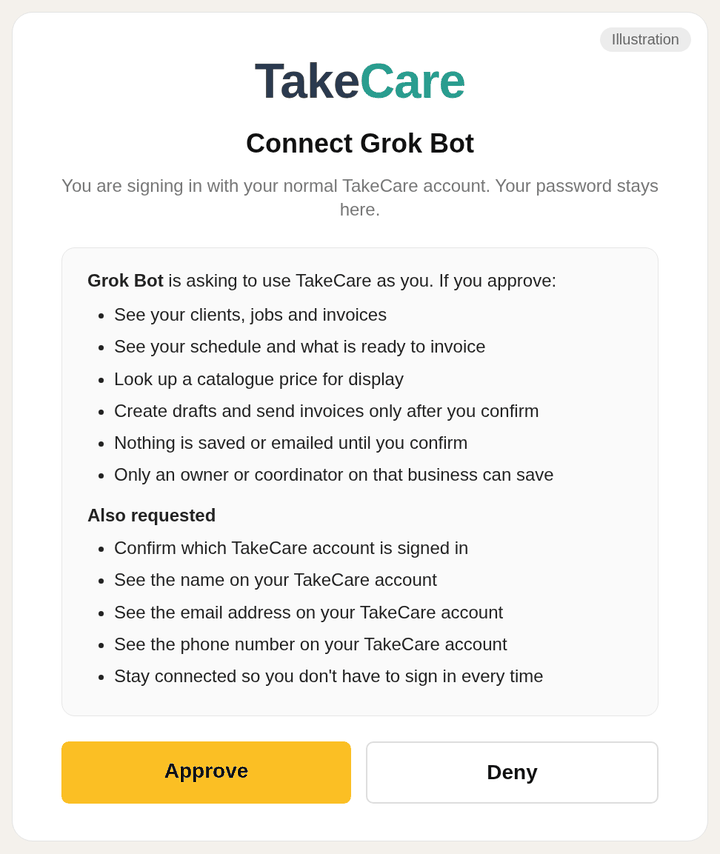
- TakeCare shows its Connect page as part of Grok Bot's connector sign-in. Check that the page names Grok Bot. It lists what the assistant can do, such as see your clients, jobs and invoices, and create drafts or send invoices only after you confirm.
- Choose Approve (or Deny to say no).
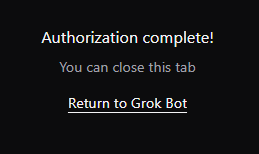
- You'll see Authorization complete! Close the tab, or choose Return to Grok Bot.
Step 3: Check it worked
In the same chat, ask: "List my TakeCare businesses." TakeCare's tools are ready straight away, with no new chat needed. If it lists your businesses, you're connected.
Step 4: Pick your business, and turn on saves if you want them
If you belong to more than one business, tell Grok Bot which one to use. Use a provider business on the provider address, and a coordinator business on the coordinator address.
Reading works without this. To let Grok Bot save:
- In TakeCare, go to Settings → My coordinator details.
- Find the Assistant saves card.
- Turn on Allow assistant saves for this business.
Providers who don't have the My coordinator details page find the same switch on the business profile, in the Assistant saves card. You can turn it off any time.
What you can ask
Grok Bot gets the same TakeCare tools as any connected assistant: open jobs, your roster, invoices, Ready to Invoice and your schedule, plus draft invoices, notes, tasks and invoice emails (with the right plan and the switch on). The full list is in the Claude guide.
Try:
- "What's ready to invoice for this month?"
- "What shifts do I have next week? Use Australia/Brisbane time."
- "Make a draft invoice for Sample Client's shift on Saturday."
How the safety steps work
Nothing changes in TakeCare until you've seen a preview and confirmed it.
- Preview first. Grok Bot shows exactly what would be saved.
- Confirm that preview. Typing "yes" on its own doesn't save anything.
- Check it in TakeCare. A new invoice stays a draft and isn't emailed.
Emailing an invoice takes two confirms. First the draft, then an email preview showing To, CC, BCC, the subject and the attached PDF. Nothing goes out until you confirm that too. Copies follow your business email preferences and the client. Your worker is only copied if your preferences already copy them.
Who can do what
- Owner or coordinator: reads and all saves (with the right plan and the switch on).
- Worker: only their assigned jobs and clients, with no rates. They can clock their own shifts in and out, and save notes if Notes access is on.
- Billing only: reads clients, invoices and templates. No saves, no Jobs.
Grok Bot or Grok?
This guide is for Grok Bot. Grok's chat at grok.com sets up connectors its own way.
What about Tess?
Tess, the assistant inside TakeCare, can also help without leaving the app. On Professional, Team or a trial, Tess can preview an action and save it after you confirm. On Free, Tess does look-ups only. Tess doesn't send invoice emails; send those from TakeCare, or with your connected assistant after its email preview. Tess can send an unpaid reminder once you press Send reminder.
Use Tess when you're in TakeCare. Use Grok Bot when you want TakeCare alongside your other work.
Troubleshooting
| Problem | What to try |
|---|---|
| Sign-in never starts, or you see "fetch failed" | Check the address is exactly https://itakecare.com.au/mcp/provider (or /mcp/coordinator). |
| You added the wrong address | Remove it under Connect apps in Grok Bot's sidebar, then add TakeCare again. |
| "This approval link is incomplete" | Start sign-in again from Grok Bot. |
| "This business cannot be used" | Ask it to list your businesses and pick the right type. |
| It says Professional or Team is required | Check the plan on that provider business. |
| The preview worked but the save was refused | Turn on Allow assistant saves for this business, then preview and save again. |
Still stuck? Use our contact form.
FAQ
Does Grok Bot see my TakeCare password?
No. You sign in on TakeCare's page.
Does it work on Free?
You can connect and read. Saves need Professional, Team or an active trial.
Can I switch saves off later?
Yes. Turn off Allow assistant saves for this business under My coordinator details (providers who don't have that page use the business profile). To disconnect completely, remove TakeCare under Connect apps in Grok Bot.
Get started
Join Early Access. Already on TakeCare? Ask Grok Bot to add https://itakecare.com.au/mcp/provider.
Related: Connect TakeCare to Claude · Pricing · For support coordinators